
Knowledgebase - Sony Ericsson XPERIA UNLOCK BY USB CABLE & TESTPOINT GUIDE !
Sony Ericsson XPERIA UNLOCK BY USB CABLE & TESTPOINT GUIDE !
XPERIA UNLOCK BY USB CABLE & TESTPOINT GUIDE!
Select your phone model from the list to see instruction and TP picture
Test Point Details For Sony Ericsson Xperia Phones
- SE X10 Arc S - LT18i
- SE Xperia Pro - MK16a
- SE MT11i
- SE MT15i
- SE Xperia Mini Pro - SE SK17i
- SE Xperia Play - SE R800
- SE Xperia Arc - SE SO-01C
- SE Xperia Arco - SE SO-02C
- SE Xperia Ray - SE SO-03C
- SE Xperia Min - SE ST15i
- SE Xperia Active - SE ST17i
- SE Xperia Ray - SE ST18i
Micro USB Cable same for all models

Â
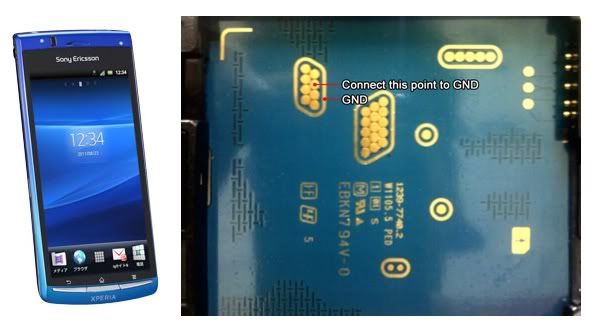
MODEL: SE LT15i Xperia ARC and SE LT18i Xperia ARC S
Â
- Connect phone powered on to your PC
- Install necessary drivers (drivers are located in "Program Installation Folder" folder)
- Press "Unlock" button
- Disconnect battery
- Attach Testpoint and connect phone with Micro USB cable directly to motherboard USB port (don't use USB hubs!)
- Follow software instructions (prompts)

Â
Â
TOP
Â
MODEL: SE XPERIA MK16a Qualcomm
Â
- Connect phone powered on to your PC
- Install necessary drivers (drivers are located in "Program Installation Folder" folder)
- Press "Unlock" button
- Disconnect battery
- Attach Testpoint and connect phone with Micro USB cable directly to motherboard USB port (don't use USB hubs!)
- Follow software instructions (promts)

Â
Â
MODELS: SE MT11i Qualcomm
Â
- Connect phone powered on to your PC
- Install necessary drivers (drivers are located in "Program Installation Folder" folder)
- Press "Unlock" button
- Disconnect battery
- Attach Testpoint and connect phone with Micro USB cable directly to motherboard USB port (don't use USB hubs!)
- Follow software instructions (promts)

Â
Â
MODEL: SE MT15i Qualcomm
Â
- Connect phone powered on to your PC
- Install necessary drivers (drivers are located in "Program Installation Folder" folder)
- Press "Unlock" button
- Disconnect battery
- Attach Testpoint and connect phone with Micro USB cable directly to motherboard USB port (don't use USB hubs!)
- Follow software instructions (promts)

Â
Â
Â
MODEL: SE SK17i Qualcomm
Â
- Connect phone powered on to your PC
- Install necessary drivers (drivers are located in "Program Installation Folder" folder)
- Press "Unlock" button
- Disconnect battery
- Attach Testpoint and connect phone with Micro USB cable directly to motherboard USB port (don't use USB hubs!)
- Follow software instructions (promts)

Â
MODEL: SE R800 Qualcomm
Â
- Connect phone powered on to your PC
- Install necessary drivers (drivers are located in "Program Installation Folder" folder)
- Press "Unlock" button
- Disconnect battery
- Attach Testpoint and connect phone with Micro USB cable directly to motherboard USB port (don't use USB hubs!)
- Follow software instructions (promts)

Â
Â
MODEL: SE SO-01C Qualcomm
Â
- Connect phone powered on to your PC
- Install necessary drivers (drivers are located in "Program Installation Folder" folder)
- Press "Unlock" button
- Disconnect battery
- Attach Testpoint and connect phone with Micro USB cable directly to motherboard USB port (don't use USB hubs!)
- Follow software instructions (promts)

Â
Â
Â
MODEL: SE SO-02C Qualcomm
Â
- Connect phone powered on to your PC
- Install necessary drivers (drivers are located in "Program Installation Folder" folder)
- Press "Unlock" button
- Disconnect battery
- Attach Testpoint and connect phone with Micro USB cable directly to motherboard USB port (don't use USB hubs!)
- Follow software instructions (promts)
Â
MODEL: SE SO-03C Qualcomm
Â
- Connect phone powered on to your PC
- Install necessary drivers (drivers are located in "Program Installation Folder" folder)
- Press "Unlock" button
- Disconnect battery
- Attach Testpoint and connect phone with Micro USB cable directly to motherboard USB port (don't use USB hubs!)
- Follow software instructions (promts)

Â
MODEL: SE ST15i Qualcomm
Â
- Connect phone powered on to your PC
- Install necessary drivers (drivers are located in "Program Installation Folder" folder)
- Press "Unlock" button
- Disconnect battery
- Attach Testpoint and connect phone with Micro USB cable directly to motherboard USB port (don't use USB hubs!)
- Follow software instructions (promts)

Â
Â
MODEL: SE ST17i Qualcomm
Â
- Connect phone powered on to your PC
- Install necessary drivers (drivers are located in "Program Installation Folder" folder)
- Press "Unlock" button
- Disconnect battery
- Attach Testpoint and connect phone with Micro USB cable directly to motherboard USB port (don't use USB hubs!)
- Follow software instructions (promts)

MODEL: SE ST18i Qualcomm
- Connect phone powered on to your PC
- Install necessary drivers (drivers are located in "Program Installation Folder" folder)
- Press "Unlock" button
- Disconnect battery
- Attach Testpoint and connect phone with Micro USB cable directly to motherboard USB port (don't use USB hubs!)
- Follow software instructions (promts)

Â
Â